
LuckyHash Profile Pic Generator
Add a LuckyHash logo and colour overlay to your profile image. Choose a preset or customise the colours yourself.
Open generator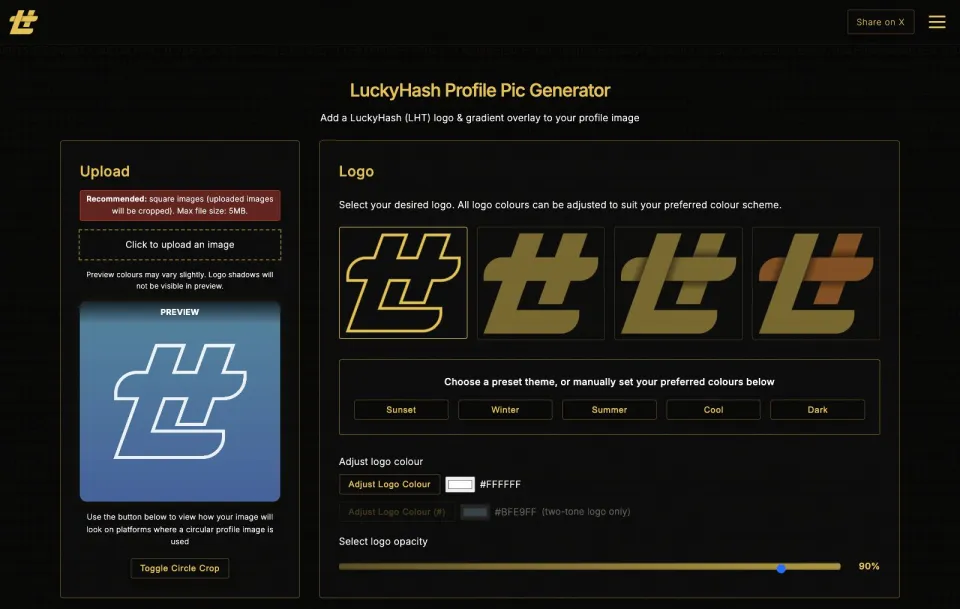
Start with your photo
The generator adds a LuckyHash logo and a colour overlay to an existing image. Choose a JPG or PNG up to 5 MB. A square image works best; other shapes are cropped, so keep the subject near the centre.
The preview updates as you change the settings. Toggle the circle crop to check how the picture will look in a round profile frame before generating the finished image.
Colours and logo styles
Choose an outline, solid, single-colour shadow or two-tone shadow logo. The Sunset, Winter, Summer, Cool and Dark presets provide starting colours; you can then adjust them individually.
Set the top and bottom background colours to make a gradient, or use the same colour for a flat overlay. Separate opacity controls let you adjust the strength of the logo and background so your photo still shows through.
Preview and download
When the preview looks right, click Generate to create the finished image and download it. Preview colours can differ slightly from the final result, and logo shadows appear in the generated image rather than the preview.
The live preview is drawn in your browser. Clicking Generate sends your selected image and settings to the generator’s server to produce the download.